The GameChanger dates that never reach your calendar
If your kid plays travel ball, GameChanger is where the season lives: the live scorebook grandparents follow from three states away, the stream, the schedule everyone checks Saturday morning. It is very good at the game itself.
The season around the game is the problem. The tournament bracket arrives as a PDF attached to an announcement, and GameChanger will not show you the PDF until you download it. The coach types “practice moved indoors Thursday” into team chat. The uniform order closes Friday. None of that is a date yet, and in four months the announcement is gone.
Does GameChanger sync to your calendar?
Yes, and it costs nothing. GameChanger’s calendar integration subscribes your Apple or Google calendar to the team schedule. Staff, players and parent/guardian accounts get every team event including practices. Followers get the game schedule only, which is worth knowing if grandma keeps missing practices.
Credit where it is due: that is a real subscribed feed, it is free on the free plan, and once a coach edits a game time the change flows down on its own. One subscription covers one team, so you repeat it per team. Emma on two teams and Ryan on three is five calendars added by hand.
What syncs is the thing someone filed as an event. Everything else stays where it was typed.
How do you get GameChanger into Google Calendar?
On an iPhone the last step happens in a browser: you copy a link out of GameChanger and paste it into Google Calendar on the web. Apple Calendar is the shorter route if that is the calendar you use. Open the team, tap the gear, choose Schedule Sync, then Sync Schedule to Your Calendar, then Sync Apple Calendar. Your calendar app opens on the subscription: tap Subscribe, then Add at the top right.
Google starts in the same place: the team, the gear, Schedule Sync, then Sync Schedule to Your Calendar. Android finishes right there, with Sync Google Calendar, then Continue to Google’s Website, then Add. On an iPhone it takes two more steps.
- Pick Sync Google Calendar, tap Send Link and Instructions, then Copy. That link is the calendar itself, so keep hold of it.
- Open Google Calendar in a browser. Find Other calendars down the left side, click the plus beside it, choose From URL, and paste. If there is no plus to click, scroll to the bottom of the page and switch the view from Mobile to Desktop.
Two things save you a search later. The link you copied is an ordinary calendar subscription address. If you have been hunting for the GameChanger calendar URL, that link is it, and any calendar app that accepts a subscription address will accept this one. GameChanger only writes instructions for Apple and Google, so Outlook takes the same link with no article to follow. And when you want the team off your calendar again, do it in Google Calendar on the web: GameChanger says the Google Calendar app cannot remove a subscription.
GameChanger calendar not syncing?
Two documented reasons, and neither is your phone. First, GameChanger says Google “can take up to 24 hours” to pick up a change, so a Tuesday game moved Monday night can still show the old time at breakfast. Their own fix is to add the characters &1=1 to the end of the calendar link, which they say makes the feed refresh more often. GameChanger says to take that link from Copy Calendar Link rather than from the sync button, so if the team is already on your calendar, this means adding it again from that link.
The second one is sharper. If your league pushes its schedule in from Sports Connect, games marked Rescheduled or Postponed do not sync into GameChanger at all. Someone has to notice and build a new event by hand. The one game you most need to know about is the one most likely to be missing, and your calendar cannot show you a gap.
The screenshot route
Fridgeworthy reads a screenshot the same way it reads the paper that came home in the backpack, so the workflow is short:
- Screenshot the announcement or the chat message. If a bracket or fee sheet is attached, download it, open it, and screenshot that too. A long bracket can be two screenshots; overlap is fine.
- Tap the screenshot preview, hit share , and pick Fridgeworthy. It goes straight into a scan. Or open Fridgeworthy later and import from Photos ; a batch holds six pages, which is enough for a bracket with the fee sheet under it.
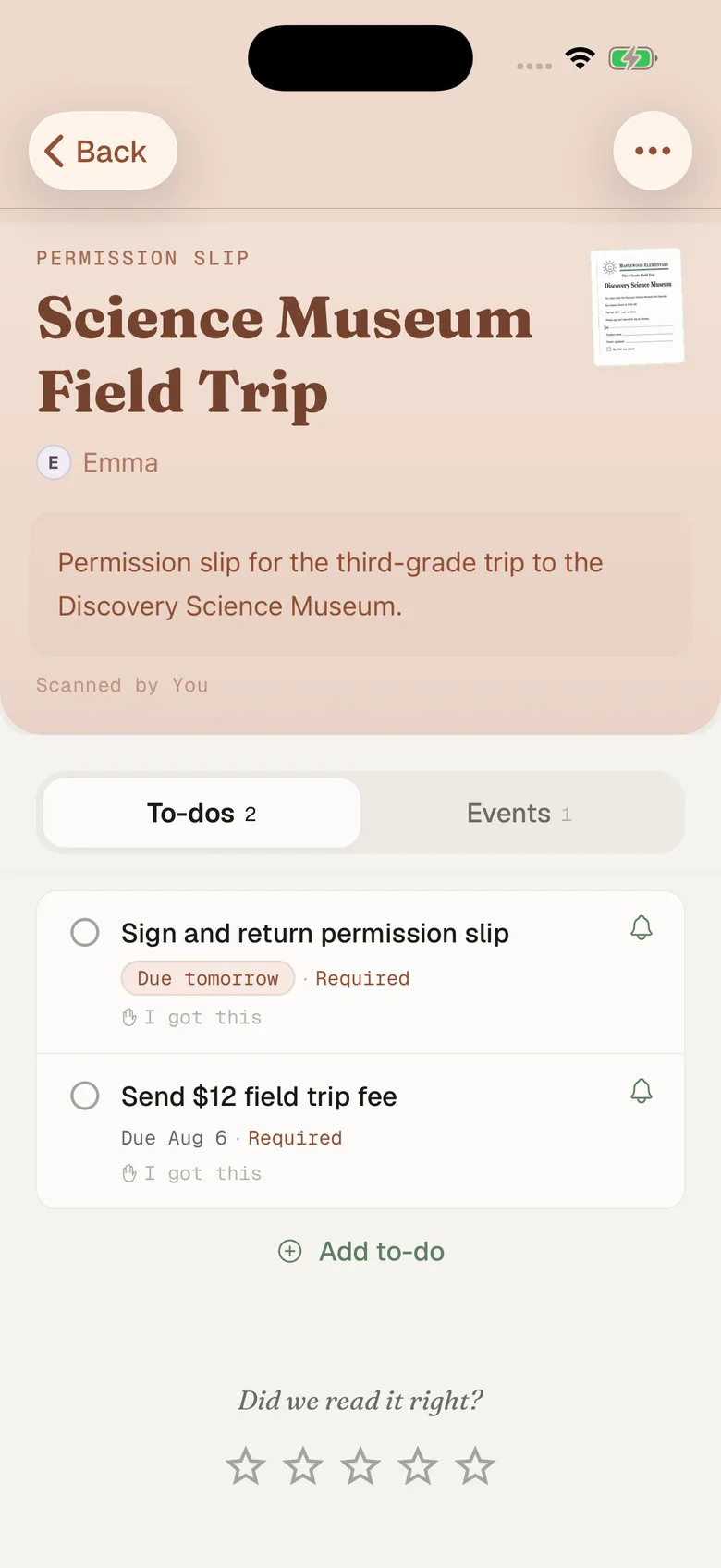
- Fridgeworthy pulls out the dates, deadlines and to-dos, files them under the right kid, and keeps the image, so the announcement is still readable long after GameChanger expires it.
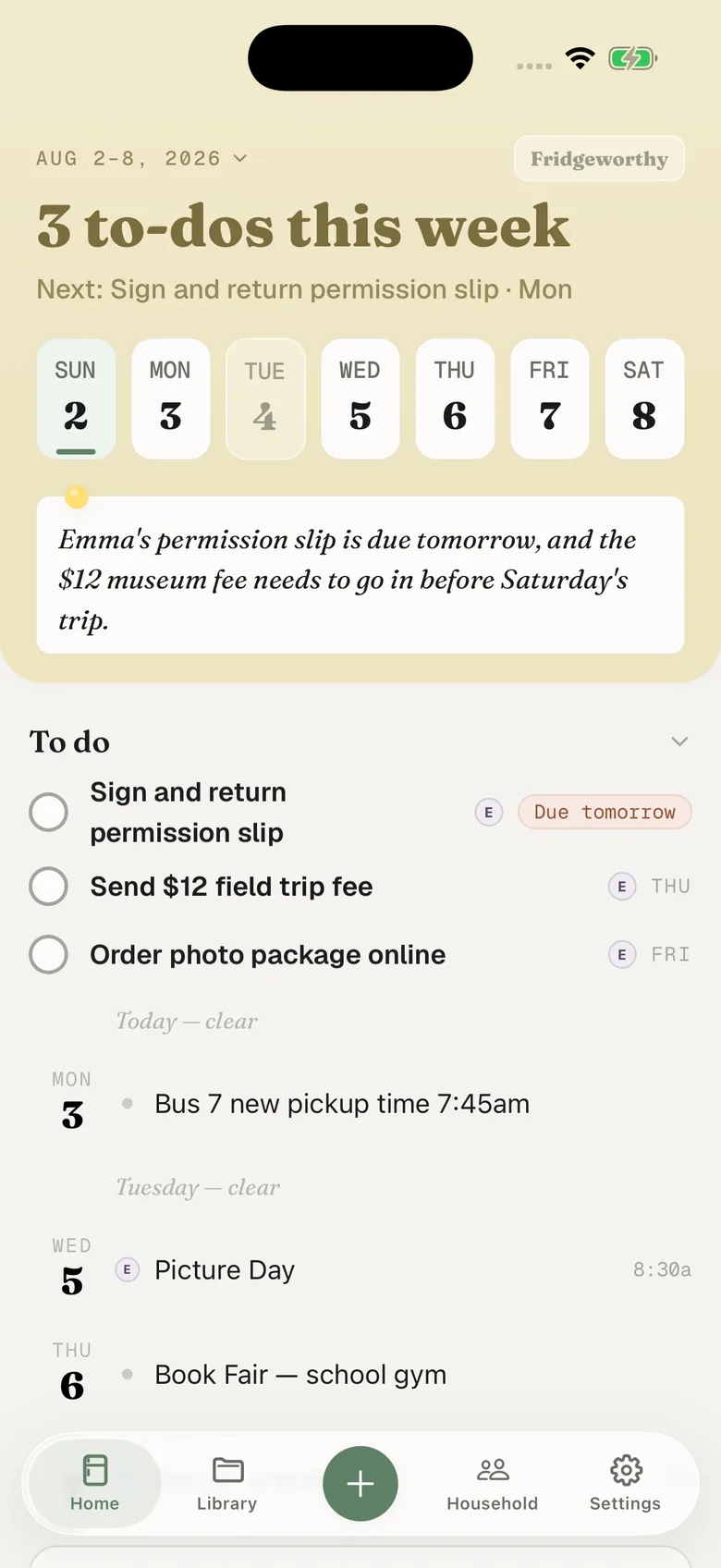
The Friday uniform deadline becomes a to-do under Ryan’s name. The 7:40am arrival lands on Saturday. With calendar sync on in Settings, those dates also reach whichever iPhone calendar you picked, one way, each event titled with the child’s name in front.
Two kids, four teams, one week
Baseball on GameChanger, soccer on TeamSnap, the club on SportsEngine, and the school still posting on ClassDojo. Each app is fine on its own and none of them knows the others exist, so the collision shows up in your kitchen: Emma has a game at the same hour Ryan has a recital.
Fridgeworthy keeps the child attached to every date, so the week reads by kid instead of by app. The other adult in your household sees the same week. If that week is also on the Skylight in the kitchen, the display shows it without anyone retyping anything.
What this doesn’t do
There is nothing to connect. Fridgeworthy never signs into GameChanger and never sees your team. GameChanger publishes no public API or developer documentation, so there is nothing to connect to even if we wanted it. What is on your screen is the way in.
Attachments are the honest weak spot on both sides. GameChanger accepts jpg, png, heic and pdf on an announcement, and says attachments cannot be previewed in the app and have to be downloaded. A downloaded image shares into Fridgeworthy normally. A PDF does not: our share sheet takes images only. Screenshot it, or, if the same file reached you by email, forward that email to your household address in Settings under Email to Fridgeworthy and the PDF gets read directly. The first message from a new sender waits for a one-tap approval, and each document a forward creates uses a scan.
Keep GameChanger. Nothing else streams the game or keeps the book, and the schedule sync is genuinely worth turning on. What it cannot hold is the dates buried in the announcements, and those are the ones that catch a family out. In Fridgeworthy they sit under the right kid, in the same week as the picture day flyer from the backpack, still there long after the announcement is gone.