Getting ClassDojo posts onto the family calendar
If your child’s teacher runs the classroom on ClassDojo, the feed is where the school day shows up: photos from the science table, a note that Friday is pajama day, a message about the $12 field trip fee, the PTA newsletter posted as a PDF.
The feed does its job. What it does to a date is the problem. “Slips are due Friday” is one sentence inside Tuesday’s post, and by Wednesday there are four posts stacked on top of it.
Does ClassDojo sync to your calendar?
For a parent, not without paying. Syncing ClassDojo events to Google or Apple is built for teachers and school staff, on the website. Families get Calendar Sync through ClassDojo Plus, the optional paid subscription.
The one thing ClassDojo puts a real date on is the Event. A teacher files one with a title, a date and time, and reminder notifications, and families see the next one pinned to the top of the story feed, with View all beside it to list the rest in date order. That part ClassDojo does well.
Plus is what moves those Events off the feed. Its Calendar Sync adds school events to a Google or Apple calendar, bundled in with Memories, home points and fuller progress reports. Worth knowing before you pay: what it carries is the Event, and only the Event.
The rest never becomes an event at all: the due date written into the body of a post, the field trip flyer attached as a PDF, the chat reply asking for two dozen cupcakes and a folding table. Those are sentences in a feed, and sentences in a feed have to be remembered.
Where the dates arrive
Not all of those sentences arrive in the same place. Class Story and School Story do share one feed for families: Class Story is your child’s teacher, School Story is the whole school. Private Chats with the teacher sit outside that feed, and so do the Portfolio posts a teacher approves. ClassDojo notifies you about each of them. The switches for those notifications are not inside ClassDojo, though: they live in your phone’s own settings for the app, which is the first place to look if you stopped hearing about anything.
The screenshot route
Fridgeworthy reads a screenshot the same way it reads the paper that comes home in the backpack. That makes the workflow short:
- Screenshot the post. If a flyer is attached, open it and screenshot that too. A long post can be two screenshots; overlap is fine.
- Tap the screenshot preview, hit share , and pick Fridgeworthy. It goes straight into a scan. Or open Fridgeworthy later and import from Photos ; you can select several at once, and a batch holds six pages.
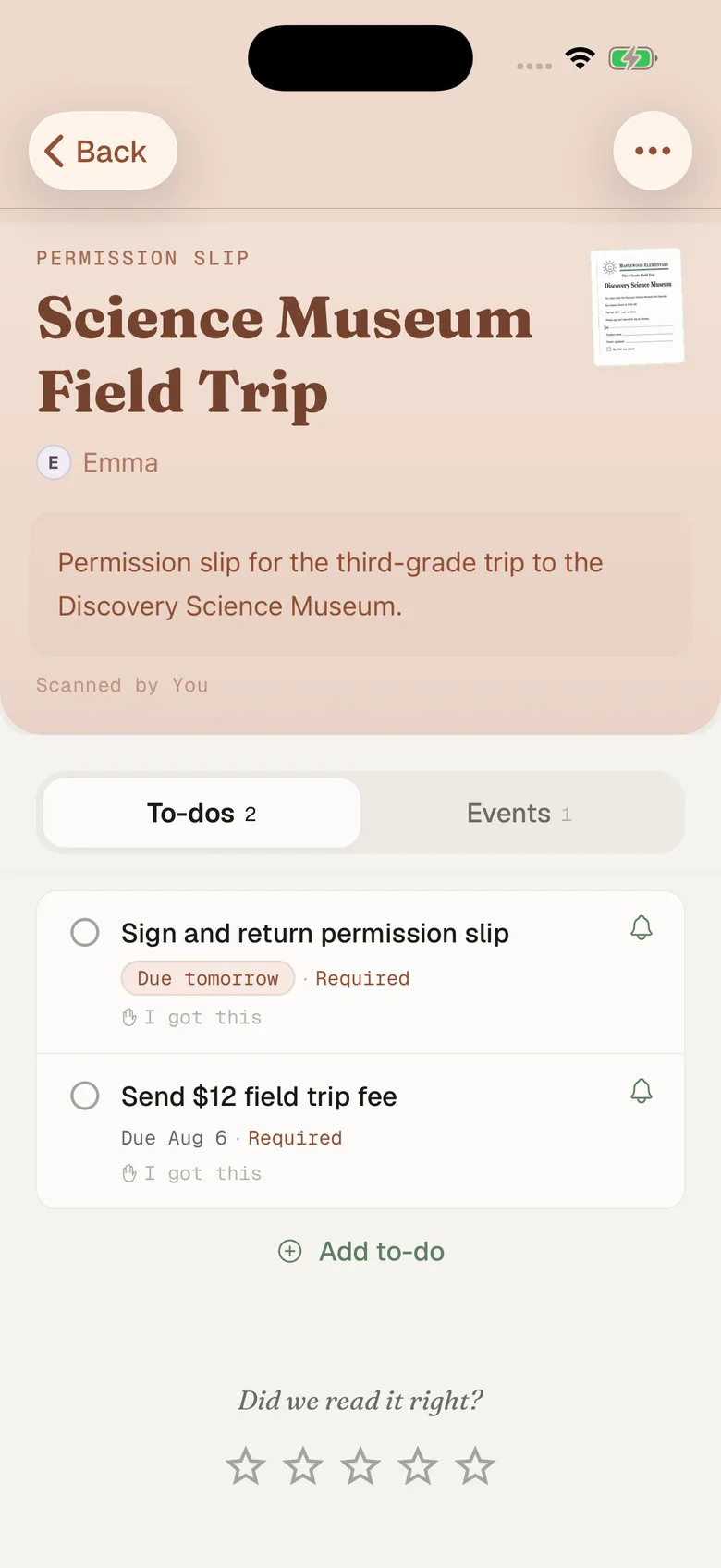
- Fridgeworthy pulls out the dates, deadlines, and to-dos, sorts them by child, and keeps the screenshot attached so the teacher’s exact wording stays one tap away.
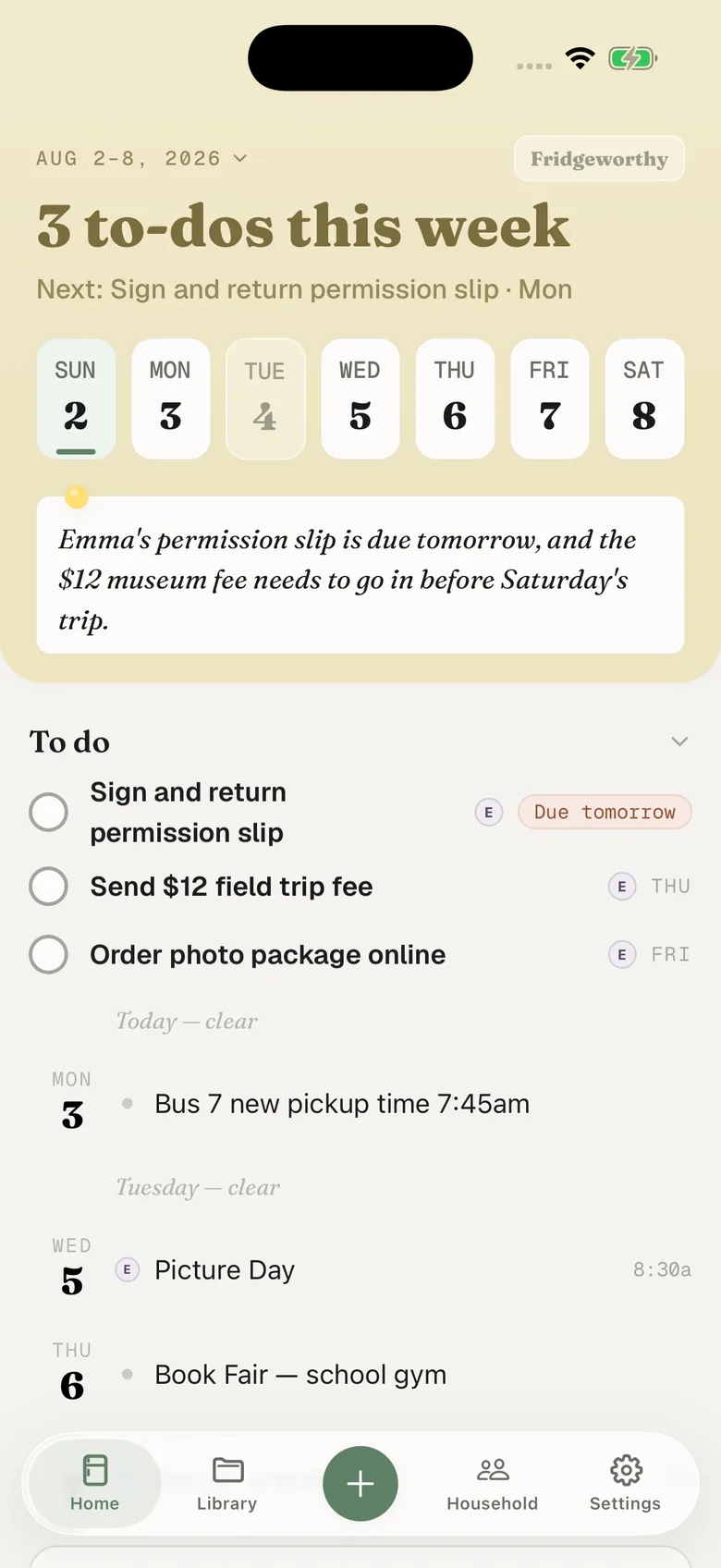
Pajama day lands on Friday. The cupcakes land as a to-do with the day they’re due, under the right kid’s name. If you’ve turned on calendar sync in Fridgeworthy’s Settings, the dates also land on your iPhone calendar, each event titled with the child’s name in front. That sync runs one way, so nothing you already have gets touched.
Two kids, two Class Stories
A second grader and a fourth grader means two teachers, two class feeds, and sometimes two schools posting on different days. One teacher may not even be on ClassDojo. Plenty of classrooms run Remind instead, and some schools run ParentSquare across every classroom at the same time. Fridgeworthy keeps the child attached to every date and to-do, so the week reads by kid instead of by feed. The other parent in your household sees that same week, which is the end of “did you see the post about Thursday.”
The feed is rarely the only place either. Grades and attendance sit in the district portal, usually PowerSchool, or SchoolTool if you are in New York; the $12 gets paid in MySchoolBucks; and a younger sibling at daycare is on Kangarootime, a whole separate app. Four logins, one Thursday. Each of those has its own guide, and all four end in the same week, sorted by child.
What this doesn’t do
There’s no connection to set up between the two apps. Fridgeworthy never signs into ClassDojo and never sees your feed; ClassDojo is still asking who would want an API, which means there isn’t one to connect to yet. The screen in front of you is the way in.
Email is a route for one group only, so check your inbox before you count on it. ClassDojo sends email notifications to parents who don’t use the app, and it is one or the other: installing the app moves you to push and the emails stop. If ClassDojo mail is still arriving for you, your household has its own Fridgeworthy address in Settings under Email to Fridgeworthy . Forward one there and whatever it carries gets read, PDF attachments included. The first email from a new sender waits for a one-tap approval in the app; after that, that sender is read automatically. Each document a forward creates uses a scan. If you use the ClassDojo app, no ClassDojo mail arrives to forward, and the screenshot route above is yours.
None of this replaces ClassDojo. The teacher should keep posting there; that’s where the photo of your kid at the science table lives. Fridgeworthy gives the dates inside those posts somewhere to land: one week, sorted by child, with Friday’s pajama day sitting next to the picture day flyer that came home in the backpack.