Putting school papers on the Skylight in the kitchen
The Skylight on the kitchen wall solved half the problem: the family calendar finally lives where the family actually looks. What it can’t do is read the backpack. The field trip form, the picture day flyer, the spirit week schedule: someone still has to type those in, and that someone is usually you.
Fridgeworthy closes that gap. Scan the stack, and the dates land on the calendar your Skylight displays.
Does Fridgeworthy connect to your Skylight?
No, and it doesn’t need to. There is no account link between the two. What they share is a calendar: your Skylight pulls in a calendar you set up as a source in its app, and Fridgeworthy writes scanned events into a calendar on your iPhone. Point both at the same one and the chain is complete: backpack, phone, kitchen wall.
Setup, once
First, find out which calendar your Skylight is showing: open the Skylight app and look under Sync Calendars. Those are the only calendars the display reads. Fridgeworthy’s picker lists the calendars it can add events to, so a schedule you only subscribed to, like a team feed, won’t appear there.
Then, if the Skylight is showing a calendar you can add events to:
- In Fridgeworthy: Settings, then Calendar Sync , and turn it on.
- When it asks where events go, pick the calendar your Skylight is already showing. Google household? Add that Google account to your iPhone first (in the iPhone’s Settings app, under Calendar, then Accounts) so its calendars show up in the picker.
- That’s it. From then on, scanning is the whole workflow.
Fridgeworthy can also create its own calendar, in sage green, which keeps school dates separate from everything else. That one is worth knowing the real cost of: a brand new calendar is not on the Skylight yet, and connecting it is more than a toggle.
- One-way, iCloud to Skylight: in the Skylight app, open Sync Calendars, choose iCloud, and pick the one-way option. Then in the iPhone’s Calendar app, tap the circled i next to that calendar, switch on Public Calendar, tap Share Link and copy the link it gives you (it starts with webcal:), and paste it back into the Skylight app. Public is not optional here; Skylight reads the calendar through that link.
- Two-way skips the public step but wants more of you: two-factor on your Apple account, plus an app-specific password, generated at appleid.apple.com. Not your Apple password, a separate one.
One thing to weigh before making a calendar public: anyone with that link can read it, and Fridgeworthy puts your child’s first name in front of every event. If that sits badly, use a calendar the Skylight already shows and skip the whole question.
Scanned events not showing on the Skylight?
Nine times out of ten it’s the calendar you picked, not the sync. The Skylight only shows calendars you added as a source in its app, so an event has to land on one of those to appear. Check which calendar Fridgeworthy is writing to, then check that the same one is switched on in the Skylight app.
If you made the sage green calendar and linked it one-way, check that Public Calendar is still switched on for it. That link is how the Skylight reads the calendar, so turning it off quietly stops the events arriving while everything still looks right on your phone.
The one that catches people out is a phone that isn’t signed into iCloud. A calendar created on that phone lives only on the device. It looks fine on your phone and never reaches the Skylight. Pick an iCloud or Google calendar instead and the events flow.
What it looks like in practice
The Skylight gets looked at every day; that’s the whole reason it’s on the wall. So the stack gets scanned the night it comes home: a field trip form, next month’s lunch menu, a picture day flyer, one pass of the camera . By the next morning’s glance at the display, Tuesday’s slip deadline, Thursday’s trip and picture day are already up there. Everything syncs into one shared calendar rather than one per child, so each event carries the child’s name in front: “Emma: Field trip, Riverbend Farm”.
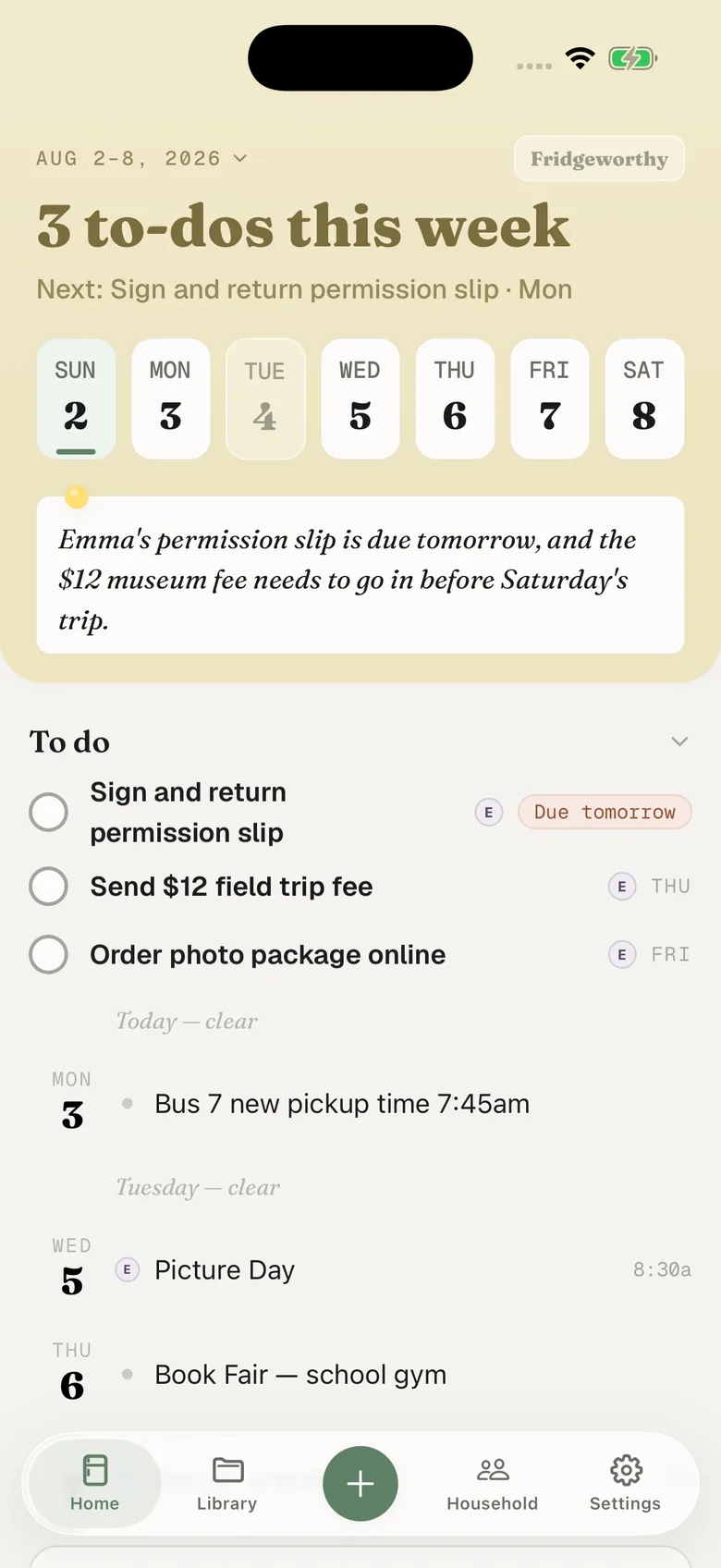
Two small things worth knowing:
- Sync is one-way, from Fridgeworthy to the calendar. Nothing already on your calendar gets touched, and deleting an event from the display won’t delete the scan.
- Reminders stay on your phone, not the display: all-day events nudge you at 9am the day before, timed events 24 hours ahead.
Paper is only one of the sources. If the school posts to ParentSquare or a teacher runs ClassDojo or Remind, a screenshot of the post goes in the same way and lands on the same wall.
Sports are the other half of most kitchen displays. If the team schedule already lives in TeamSnap, GameChanger or SportsEngine, you can subscribe to it from your phone, and those guides cover that setup plus the parts of a season that never become an event: the fee, the uniform deadline, the volunteer shift you signed up for months ago.
The pile was always going to arrive. This way it ends up on the wall, sorted, without anyone retyping it.