Getting the TeamSnap season onto your iPhone
If your kid’s team runs on TeamSnap, that is where the season is organized: Saturday at 9am on the turf field, the 7:15 arrival, the availability thumbs, the roster with every parent’s number on it. The schedule is the part TeamSnap does best.
The season around the schedule is where things go missing. The tournament flyer arrives attached to a coach’s email, and the app will not open the attachment. The $95 team invoice is an email with a Pay Now button and no copy inside the app at all. Snack duty rides a reminder that goes out two days before the game. And the message that actually changes your morning, “we’re on Field 3 now, bring cleats,” gets typed into team chat.
Can TeamSnap sync with Apple Calendar?
Yes, and nobody has to pay for it. Scheduling is part of what TeamSnap gives away free, and the subscribe instructions carry no plan requirement. In the classic TeamSnap app the whole thing happens on the phone: open the team, tap the Schedule tab, tap the share icon at the top left, then Subscribe.
Which app you are in matters more than anything else on this page. There are two live TeamSnap products: the classic app, and TeamSnap ONE, which clubs have been moving to since it launched. Separate apps, separate calendar links, and TeamSnap says it plainly: the ONE schedule covers teams on ONE and nothing else. If one of your teams is still on the classic app, you need the classic app to see it.
In ONE the link arrives by email. Open All Schedules, tap the calendar icon at the top right, choose Sync other calendar, and TeamSnap emails you a subscription address for each team plus one for all of them together. Their Apple Calendar instructions assume a desktop. On an iPhone, open the Calendar app and tap Calendars at the bottom. Choose Add Calendar, then choose Add Subscription Calendar on the next screen, and paste the address in. Take the all-teams link: when your kid joins a new team, that team’s events appear without you adding anything.
Why isn’t TeamSnap updating your iPhone calendar?
Because a subscribed calendar refreshes on its own clock, not TeamSnap’s. TeamSnap puts numbers on it: changes leave TeamSnap within an hour, and then it is your calendar’s turn. TeamSnap puts Google on a twelve-hour cycle, and the subscribe article warns any personal calendar can take up to 24 hours to catch a change. A field switch made Friday at 4pm can reach your phone Saturday afternoon.
That is the protocol, not a TeamSnap defect. Their ONE instructions tell desktop users to set the subscription to auto refresh every five minutes. On the morning of anything that matters, treat the app as the source of truth: the Schedule tab is current, and your calendar is a copy that lags.
Two other reasons the calendar reads wrong. Subscribe twice and you have two copies of the season, which is why TeamSnap says to remove the old subscription first. And a cancelled game does not vanish: cancelling marks the event cancelled on the schedule rather than deleting it, and notifying the team is a checkbox the coach can leave unticked. The 9am Saturday game can be cancelled with nothing arriving on your phone at all.
The screenshot route
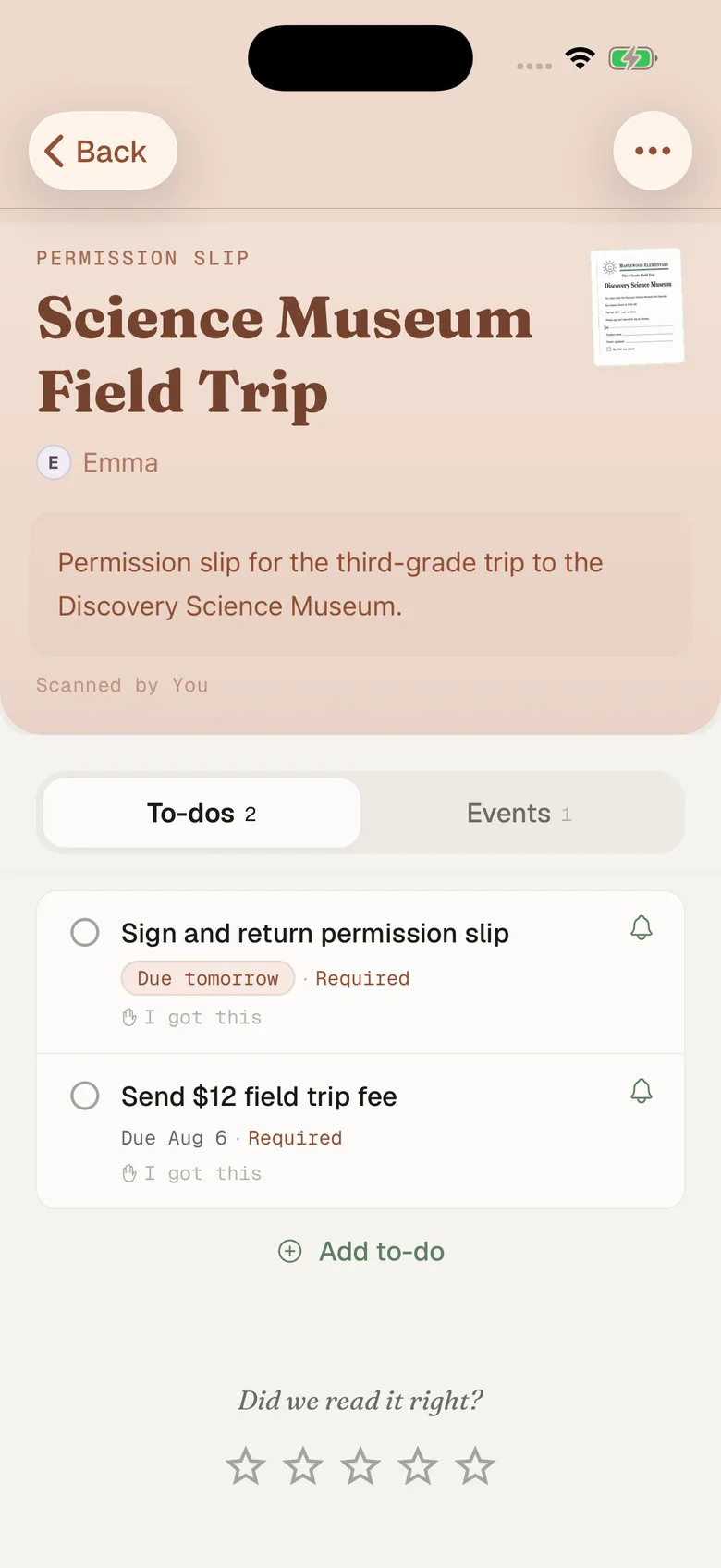
The chat message, the invoice, the flyer: all of it is already on a screen. Fridgeworthy reads a screenshot the same way it reads the paper that came home in a backpack.
- Screenshot the chat message, the assignment, or the invoice. If a flyer is attached, open it and screenshot the pages. A long tournament schedule can be two shots; overlap is fine.
- Tap the preview, hit share , and pick Fridgeworthy. It goes straight into a scan. Or open Fridgeworthy later and import from Photos ; a batch holds six pages, which covers most tournament weekends.
- Fridgeworthy pulls out the dates, deadlines and to-dos, files them under the right kid, and keeps the image attached so the coach’s exact wording stays one tap away.
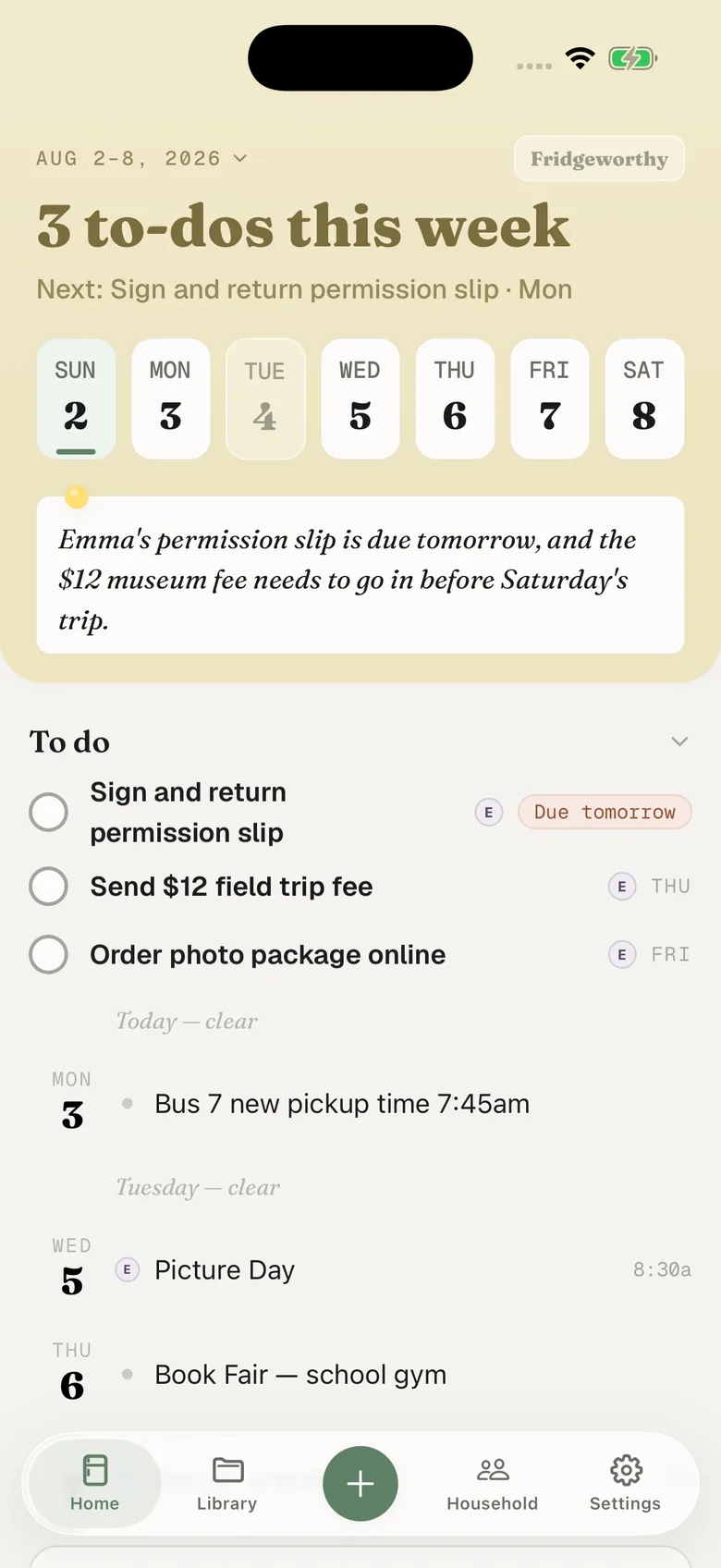
Snack duty becomes a to-do under Emma’s name. The 7:15 arrival lands on Saturday. With calendar sync turned on in Settings, those dates also reach the iPhone calendar you picked, one way, each event titled with the child’s name in front. Nothing you already have gets touched, including the TeamSnap subscription.
Two kids on different teams
Two kids on two teams is two feeds already. Classic will hand you one link covering every team you are on, but only from a web browser: open your full schedule, then Subscribe/Export. If one club has moved to ONE and the other has not, that is two apps and two subscriptions, neither able to see the other’s teams. Now put the club that bills through SportsEngine next to a baseball season kept in GameChanger, a rec league on Spond and a school posting on ClassDojo. The collision shows up in your kitchen rather than in any of them: Emma has a 9am game the Saturday Ryan has a make-up practice across town.
Fridgeworthy keeps the child attached to every date, so the week reads by kid instead of by app, and the other adult in your household sees that same week. If the calendar Fridgeworthy writes to is the one the Skylight in the kitchen reads, the display shows that week too, with nobody retyping anything.
What this doesn’t do
There is no connection to set up. Fridgeworthy never signs into TeamSnap and never sees your team. TeamSnap’s API still runs, but its developer documentation has been offline for years and there is no published way for an outsider to get access. The screen you are already looking at is the way in.
Email is a real route here, and how far it gets depends on which of the two apps your club runs. In classic TeamSnap a coach’s email lands in your own mail app as an ordinary email, and TeamSnap says the functionality to send or view an attachment is not available in the mobile app: the flyer is in Mail, not in TeamSnap. Invoices are starker still, since TeamSnap says team invoices are not displayed inside the app and tells parents to save the email if they want it later.
Forward that email to your household’s address in Settings under Email to Fridgeworthy and whatever it carries gets read, PDFs included. The first message from a new sender waits for a one-tap approval in the app, and each document a forward creates uses a scan. In TeamSnap ONE that same PDF usually arrives as a chat attachment instead, and chat is not email, so there is nothing to forward. That one is a screenshot.
Keep TeamSnap. The subscription is free and worth having, and the coach should keep posting the schedule where the team already looks. This gives the rest of the season somewhere to land: one week, sorted by child, with Saturday’s 7:15 arrival sitting next to the reading log and the dentist at 3:40 on Thursday.