Getting Schoology due dates onto your calendar
If your district runs Schoology, it is where the coursework lives: the essay due Friday, the unit test next Thursday, the reading packet posted to a course. Teachers file due dates as due dates, on a real calendar with month, week and day views.
The gap is everything around the coursework. Emma’s essay deadline is on that calendar. The athletic physical due before tryouts, the $30 activity fee, the field trip slip posted to a course as a PDF: those are in an email or a backpack.
Does Schoology sync to Google Calendar?
Yes, and it costs nothing. Schoology has a genuine subscription feed: turn on Share your Schoology calendar in Account Settings and it hands you an iCal link, a web address any calendar app can subscribe to. Schoology writes the instructions itself, for Google Calendar, for subscribing on an iPhone, and for Mac. Full credit: PowerSchool’s own parent portal has nothing like it.
- On the web, click your name in the header and choose Settings. In Account Settings, switch on Share your Schoology calendar. Copy the iCal link it shows you.
- In Google Calendar on a computer, add a calendar From URL and paste the link.
- To put it on an iPhone instead, Apple documents the path: open Settings, then Apps, then Calendar, then Calendar Accounts, and choose Add Account, then Other, then Add Subscribed Calendar. Paste the link into the Server field.
- Open the calendar you just subscribed to and read what actually arrived. Two things go wrong right here, and neither is your fault.
Why is your Schoology calendar empty?
Two reasons, and from the outside they look alike. The first is that Schoology will not share a calendar with nothing on it. Its own page says you need at least one entry, and that trying it on a blank calendar shows an error instead of a link. A parent enrolled in no courses of their own has exactly that. Create one personal event and the setting works.
The second is scoping. A parent login is really two views: your own, and a Child Activity view you reach by selecting your name, then your student’s. Your child’s assignments sit in Child Activity. The sharing switch sits in your own view, whose calendar Schoology describes as your own events plus courses and groups you are enrolled in. Nowhere do the docs say which one the iCal link publishes. Their notification pages are blunter: alerts cover your own enrollments, “not courses or groups in which your child is enrolled.” So subscribe, then check that Emma’s due dates are actually in there. If they are not, the feed is scoped to you rather than to her, and her dates take the screenshot route below, same as the paper.
Same split, same reason Schoology notifications seem broken: the digest that is actually about your child sits in another screen. Click your name and choose your student. That switches you into their view. Now click the student’s name in the same menu, choose Settings, then Notifications.
What the feed never carries
A date a teacher typed into an assignment is handled. The rest is not: the athletic physical due before the first practice, the activity fee that gets paid somewhere else entirely, often MySchoolBucks, the picture day flyer folded into quarters at the bottom of a bag. None of that is an assignment, so the feed has nothing to carry.
Course files can be PDFs, though opening one is your school’s call: depending on the permission settings in place at your school, a parent “may not be able to access content posted by other members of the course.” When you can, you reach it through My Children, the part of the Schoology app that holds your child’s courses. On a phone that area is an embedded browser view: awkward to export from, easy to screenshot.
Fridgeworthy reads a screenshot the same way it reads the paper that comes home in the backpack. That makes the workflow short:
- Screenshot the form, the flyer, or the course post. A long page can be two screenshots; overlap is fine.
- Tap the preview, hit share , and pick Fridgeworthy. It goes straight into a scan. Or open Fridgeworthy later and import from Photos ; a batch holds six pages.
- Fridgeworthy pulls out the dates, deadlines and to-dos, sorts them by child, and keeps the image attached so the exact wording stays one tap away.
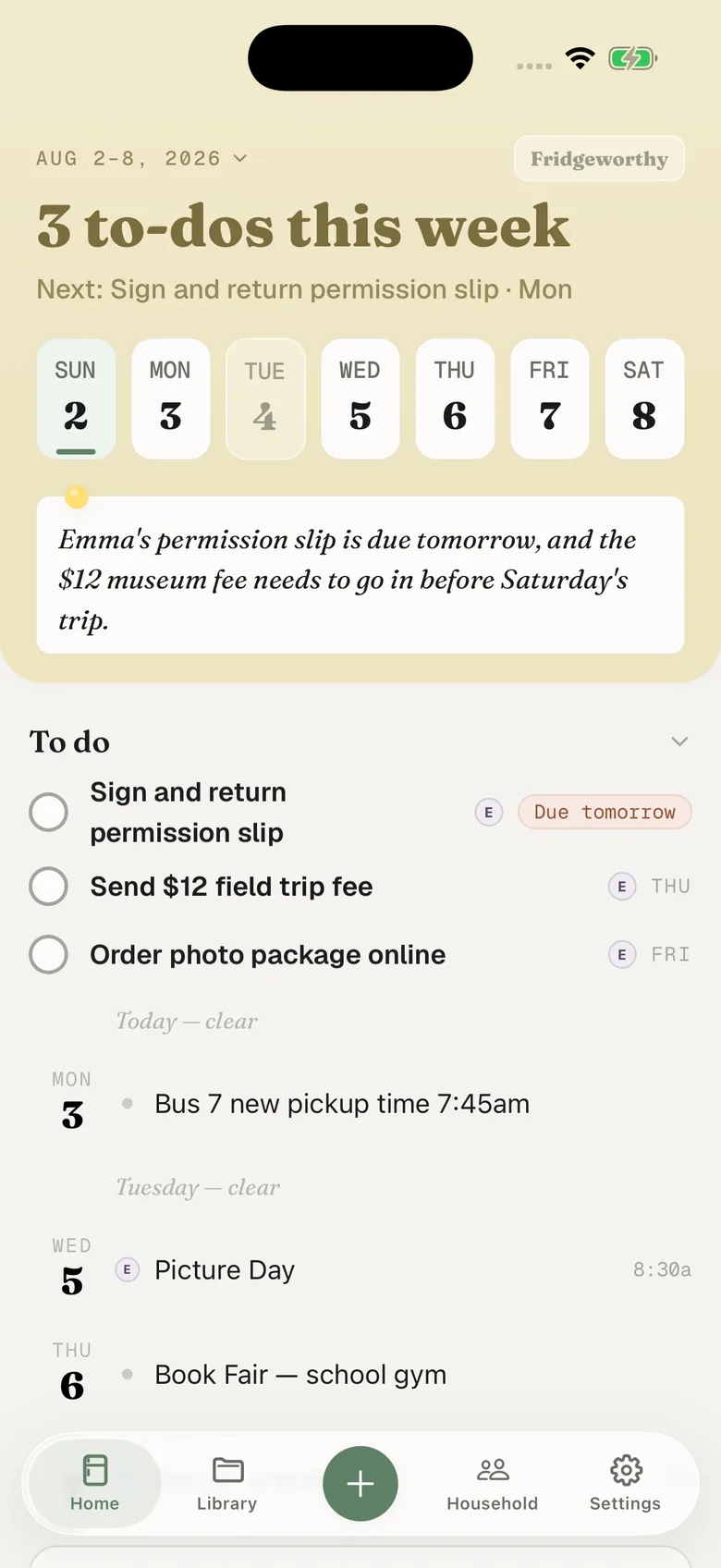
The physical lands as a to-do with the day it is due, under Emma’s name. Turn on Calendar Sync in Fridgeworthy’s Settings and those dates reach one calendar on your iPhone, one way, each event titled with the child’s name in front. Nothing you already have gets touched. That calendar can be a Google one, but only if the Google account is already on the phone, added in the iPhone Settings screen you used for the Schoology subscription.
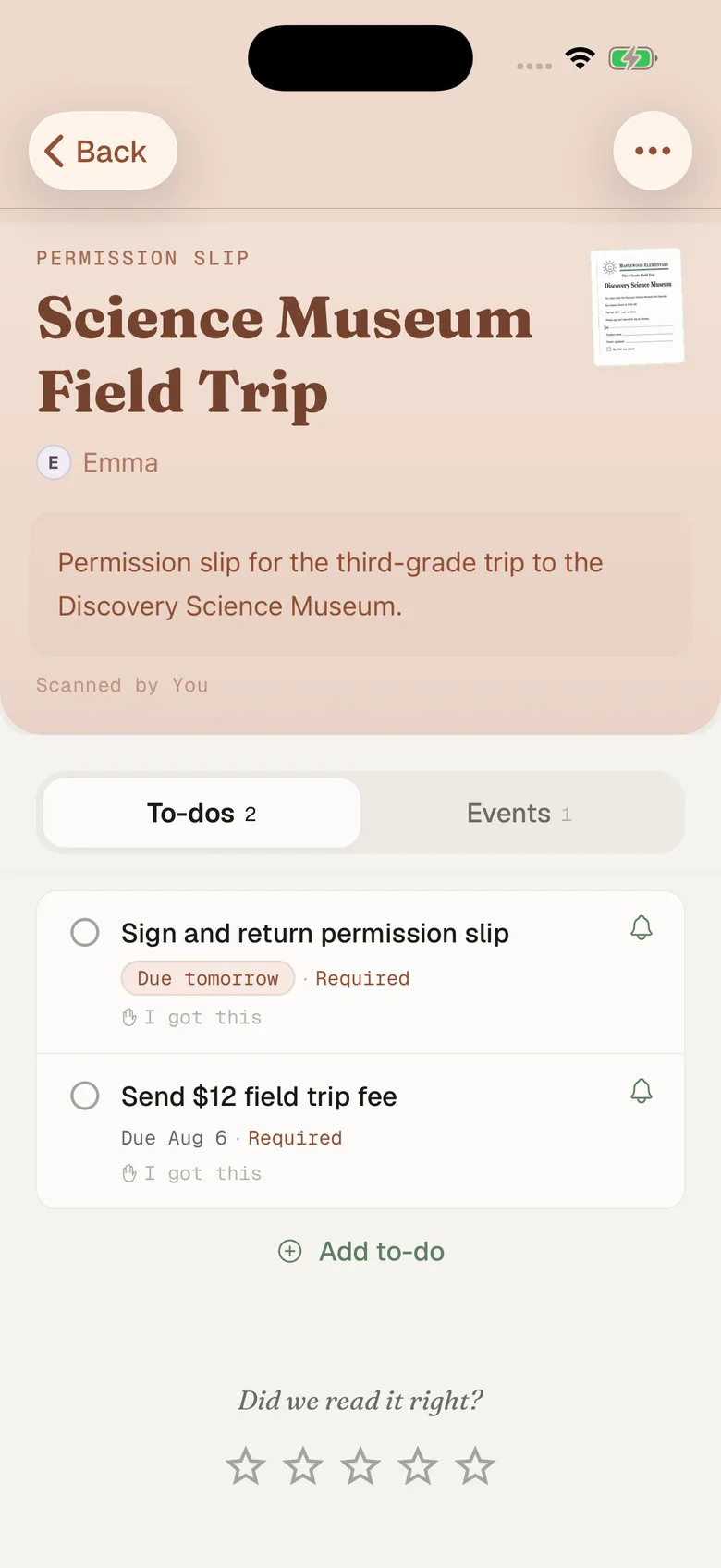
If that digest reaches you, there is a shorter route for it. Your household has its own Fridgeworthy address in Settings under Email to Fridgeworthy ; forward the digest there and whatever it carries gets read. Forwarding is also the door for PDFs, since the share sheet takes images only. The first email from a new sender waits for a one-tap approval, and each document a forward creates uses a scan.
Is Schoology the same as PowerSchool?
No. PowerSchool bought Schoology and kept both running, separate names, separate logins, separate apps. PowerSchool is the system of record for grades, attendance and enrollment; Schoology is where the coursework lives. Plenty of families have both on the same phone and were never told why. The PowerSchool side has its own guide, including why its parent portal has no calendar to export. Other districts run neither, using something like SchoolTool instead.
Both are free to you: the district pays, which is also why your Schoology looks nothing like the next town’s. You get whatever their administrator turned on. If your kids are in two districts, you need a parent account at each of their schools.
What this doesn’t do
There is no connection to set up between the two apps. Fridgeworthy never signs into Schoology and never sees your child’s courses, and that is not a feature waiting to be built. Schoology has an API, but sandbox access is for edtech companies serving multiple districts, personal email addresses are refused, and review takes weeks. Districts grant it to vendors, not to parents. What you can see, you can scan.
Scanning matters most with a second kid, since Ryan’s elementary teacher may not use Schoology at all, running ClassDojo instead. The paper never stopped either way: point the camera at the whole stack, many pages in one pass, and it lands in the same week, sorted by child, visible to the other adult in your household.
None of this replaces Schoology. Teachers should keep posting there, and if the feed works for your account, keep it subscribed. This is for everything it was never going to carry: the physical, the activity fee and picture day, sitting next to Friday’s essay.